Quick technical drawings for engineering teams
Sketch and dimension in your browser—or mark up a screenshot, PDF, or photo. Faster than Paint, lighter than CAD. Nothing to install.
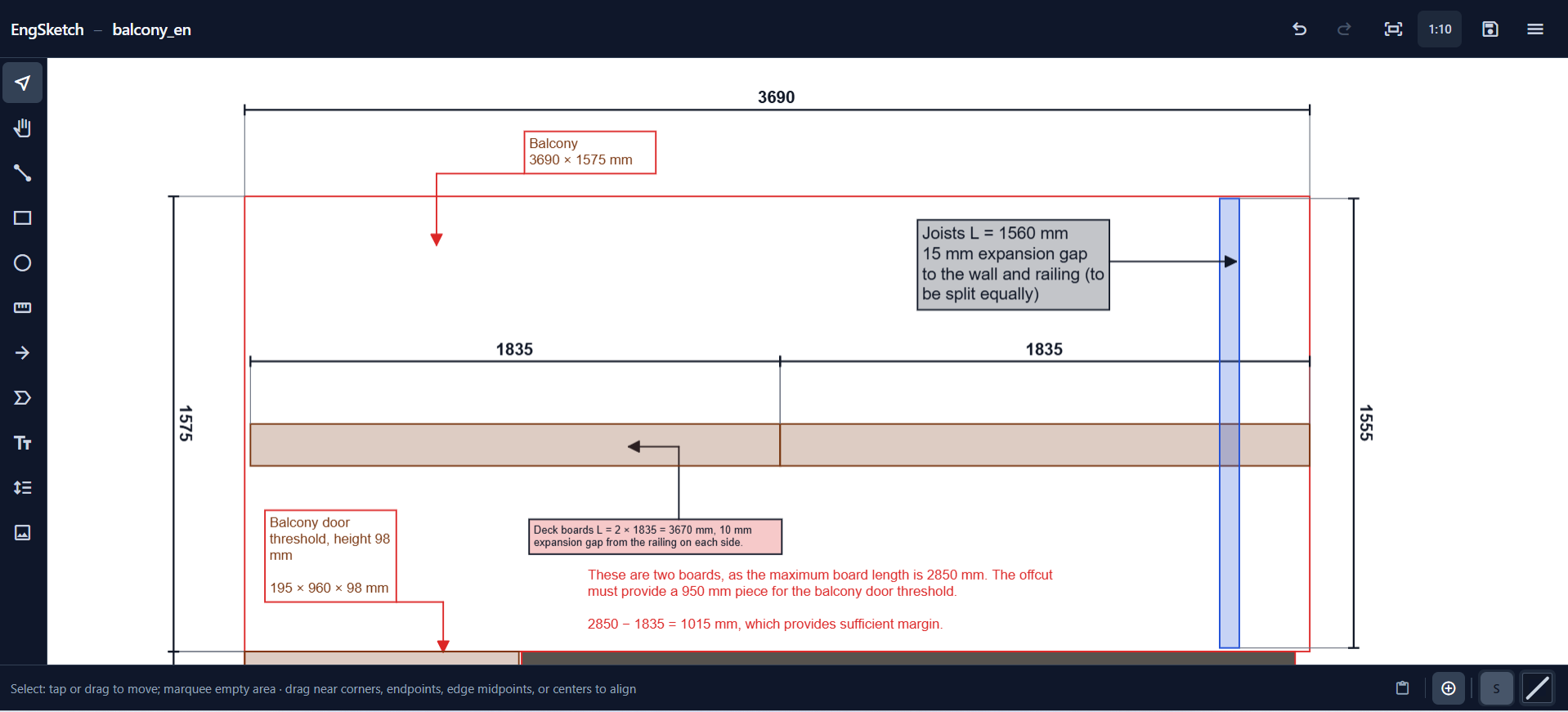
How it works
From a blank sheet or an imported image to a shareable drawing in five steps.
- 01
Start
Open a blank sheet or import an image—a screenshot, PDF, or photo from the clipboard.
- 02
Draw
Add lines, rectangles, engineering profiles, arrows, labels, and text.
- 03
Dimension
Place dimension lines in millimeters. On a photo, calibrate scale from one known measurement.
- 04
Share
Copy into email or chat for review, print a page, or hand off into CAD when you need formal documentation.
- 05
Save
Save as a .engsketch file to continue editing later.
Built for quick technical drawings
Quick technical sketch
Sketch a simple part or layout with lines, rectangles, and dimensions—export a PNG without opening CAD.
Design review
Mark up a design screenshot or PDF with dimensions and callouts before a review meeting.
Supplier email
Clarify a tolerance or fit issue with arrows and notes—clearer than an unmarked photo.
On-site photo
Import a photo from the field, calibrate scale, and show what needs attention.
Plan and compare options
Sketch a few approaches on a photo—compare assembly layouts or fixture placement before you commit.
Works on any device
Sketch in the browser—open a saved file or start fresh. No app store, no install.
- Open .engsketch files from your device
- Sketch or mark up on a tablet at the desk, on site, or in the field
- Paste a screenshot or import a photo—mark it up with lines and mm dimensions
Where EngSketch fits
EngSketch is for quick technical communication—not formal document review. Pick the column that matches what you need today.
Snip & Paint
- Built for capture and markup—not a structured technical sketch
- Arrows and freehand—not editable dimension lines in mm
- No scale calibration from a known length on a photo
- Freehand lines—no angle or point snap
PDF markup
- Strong for annotating an existing PDF—stamps, redlines, callouts
- Not for sketching from scratch with lines and mm dimensions
- Assumes the project PDF is open—not a quick screenshot or field photo
- Desktop install; not practical on a phone in the field
CAD
- Built for real models and drawings—not quick explanations
- Heavy to open for one arrow and a dimension
- Desktop install—not a browser sketch
- Overkill for chat and email
EngSketch
- Quick sketches and marked-up images in the browser—not a PDF viewer
- Mm dimensions and scale calibration
- Runs on desktop and mobile—no install
- Copy to clipboard or export full PNG and PDF pages
What you can do
Quick technical sketches and marked-up images—for email and chat, not formal document review.
Sketch and explain
- Start on a blank sheet—lines, rectangles, and dimension lines in mm
- Arrows and leader notes to point at what matters
- Mark up a CAD screenshot or on-site photo when you already have one
Measure with confidence
- Real distances in millimeters—not guessed pixels on a photo
- Calibrate once from a known size on a photo, then dimension the rest
- Enough precision for explanations; not a replacement for manufacturing drawings
Work anywhere
- Runs in the browser on desktop, tablet, or phone—nothing to install
- Save locally as .engsketch and continue editing later
- Copy to clipboard and paste in Teams or chat, or export a PNG or PDF page
FAQ
How do I share a sketch in Teams or email?
Copy and paste works like any image. Ctrl+C copies your selection as a PNG—paste it into Teams, Slack, or email. Use File → Copy to clipboard for the whole sketch (cropped to your drawing). You can also export a full PNG or PDF page, print, or save a .engsketch file to keep editing later.
Does EngSketch replace CAD?
No—it's for quick sketches and markup, not manufacturing drawings. You can export DXF if you want to continue the sketch in CAD and turn it into documentation later.
Is EngSketch a PDF editor?
No. You can place a PDF page as a background to sketch on. For formal redlines on an issued PDF in your project workflow, use your PDF viewer. EngSketch is for quick sketches and marked-up images to share in email or chat.
Can I draw a technical sketch from scratch?
Yes—blank sheet, lines, shapes, dimensions, and annotations.
Do I need to install anything or sign up?
No—runs in your browser. Open the editor and start sketching; nothing to install and no account required.
Can I use it on a tablet or phone?
Yes—modern mobile browsers supported; tablet is most comfortable for editing.
Where is my data stored?
Sketches stay on your device. Save and open sketches (.engsketch) locally—nothing is uploaded to a server.
Can I paste a screenshot?
Yes. Paste from the clipboard or import an image file. Clipboard paste support may vary by mobile browser.
Ready to sketch?
Open the editor and start drawing right away—in your browser, on any device.
Questions, ideas, or something not working? FeedbackShare feedback